How-to
How to translate subtitles (SRT and VTT)
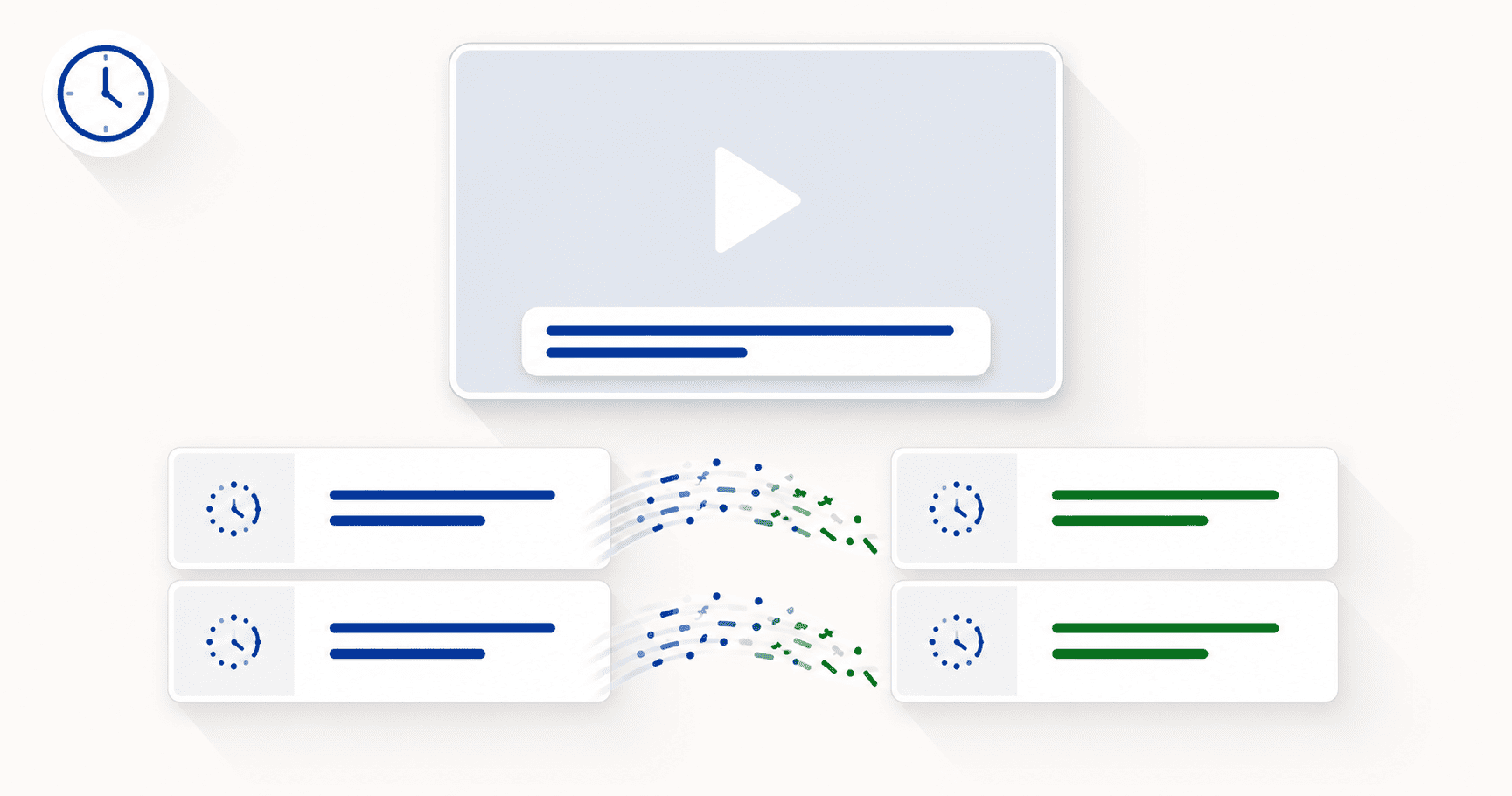
DocTranslating translates a whole SRT or VTT subtitle file into 100+ languages in one operation, keeping every timestamp and sequence number exactly in sync — only the spoken text is translated. Use DeepL for fast, natural output, or the Gemini engine, whose larger context window is especially good at reading a whole line of dialogue in context. SRT files work with DeepL and Gemini; VTT files work with Gemini.
Updated July 10, 2026 · 8 min read
You've just finished editing a video. You generated the subtitles, checked them against the audio, and they're perfect — every caption lands exactly when it should. You download the .srt file, and now you want a French version so your video reaches a wider audience.
So you start copying each caption into Google Translate, one cue at a time. You speak French, so you can see the output isn't quite right — a little stiff, a few odd word choices. You switch to DeepL and the wording gets noticeably better. But then reality hits: the video is an hour long. That's hundreds of cues. Copying, translating, and pasting each one — while carefully not touching the timestamps — would take the rest of the afternoon. There has to be a better way.
There is. You upload the whole .srt file once, pick your language, and get back a translated subtitle file with every timestamp still perfectly in place. This guide shows how — and why doing it the manual way risks breaking your subtitles entirely.
Why you can't just paste an SRT into Google Translate
An SRT file isn't just text — it's a structure. Each caption block has three parts: a sequence number, a timecode range, and the subtitle text.
When you paste an SRT into a generic translator, it sees the whole thing as plain text — numbers, arrows and words all mixed together — and translates all of it. Timecodes get mangled, the arrows can change, sequence numbers shift, and the file stops working: captions appear at the wrong time, or the video player rejects the file completely. A subtitle-aware translator avoids this by parsing the structure first and translating only the text lines, leaving every number and timecode untouched.
Step-by-step: translate a subtitle file
- 1
Upload your .srt or .vtt file
Drag your subtitle file onto the upload area or click to browse. DocTranslating recognises the subtitle format and shows the engines that support it — SRT works with DeepL and Gemini; VTT works with Gemini.
- 2
Choose your source and target languages
Set the language your subtitles are in (or leave it on auto-detect) and the language you want them translated into — French, Spanish, Arabic, Japanese, or any of 100+ others.
- 3
Pick DeepL or Gemini
Choose DeepL for fast, natural-sounding output, or the Gemini engine when you want the translator to read each line in fuller context. The comparison below explains when each one shines.
- 4
Translate the whole file and download
Click Translate. The entire subtitle file is processed at once — every cue, in order — with all timestamps and sequence numbers preserved. Download the translated .srt or .vtt and drop it straight onto your video; no re-syncing needed.
DeepL or Gemini — which should you use for subtitles?
Both engines keep your timing intact; the difference is in how they translate the words.
| Engine | Best for | Formats |
|---|---|---|
| DeepL | Fast, natural output for European languages | SRT |
| Gemini | Context-aware translation of dialogue; widest language range | SRT, VTT |
DeepL is excellent for well-supported European languages and produces subtitles that read smoothly with very little cleanup. The Gemini engine is a large language model, which gives it a real advantage on dialogue: it reads the line in context and is better at catching idioms, tone and meaning that a more literal translation would miss — useful when a caption only makes sense in light of the scene around it. Gemini also covers the widest range of languages and is the engine to use for VTT files.
The reading-speed problem (and the 42-character rule)
Here's the subtitle-specific catch worth knowing. Translated text is often longer than the original — French, German and Spanish frequently run 20–30% longer than English. A caption that fit comfortably in its two-second window in English can become too long to read in the same window once translated. This is the one thing automated subtitle translation can't solve for you, because it's about timing, not words.
- Keep lines readable. Broadcast subtitles aim for roughly 42 characters per line, two lines maximum. Translated captions that blow past this are hard to read at speed.
- Watch the reading speed. If a translated caption is much longer than the original, viewers may not finish reading it before it disappears. Shorten the wording slightly where needed.
- Protect names and brands. Proper nouns — people, places, product names — usually shouldn't be translated. Check that they came through unchanged.
- Spot-check the sync. Drop the translated file onto your video and watch the first and last minute to confirm captions still line up.
For video creators and courses
Translated subtitles are one of the highest-leverage things a creator can add. They open your video to viewers who don't speak the original language, and because platforms and search engines can read subtitle text, multilingual captions can help your content get discovered in more places. Whether you're publishing to YouTube, TikTok, or a course platform, translating the .srt you already generated — rather than re-captioning from scratch — is the fast path to a multilingual version.
A note on file encoding
Subtitle files should be saved in UTF-8 encoding so that accented characters and non-Latin scripts (Arabic, Chinese, Cyrillic) display correctly. Files exported by modern subtitle tools are almost always UTF-8 already; if you see garbled characters after translating, re-save the original as UTF-8 and translate again.
Frequently asked questions
How do I translate an SRT file without breaking the timing?
Upload the whole .srt file to DocTranslating, choose your languages, and pick DeepL or Gemini. The tool parses the subtitle structure and translates only the caption text, leaving every timecode and sequence number exactly as it was — so the translated file stays perfectly in sync and needs no re-timing. Pasting an SRT into a generic translator, by contrast, translates the timecodes too and breaks the file.
Why do the timestamps break when I use Google Translate on subtitles?
A generic translator treats the SRT as plain text and translates everything it sees — including the numbers and the timecode arrows — which corrupts the file's structure. A subtitle-aware translator parses the format first and only touches the text lines, keeping all timing information intact.
Which engine is best for translating subtitles?
DeepL gives fast, natural output for major European languages. The Gemini engine, being a large language model, is especially good at translating dialogue in context — catching idioms and tone — and covers the widest range of languages. For conversational content, try Gemini first; for straightforward narration in a European language, DeepL is quick and clean.
Can I translate VTT (WebVTT) files too?
Yes. VTT files are supported through the Gemini engine, which translates the caption text while preserving the cue timings and structure. SRT files can be translated with either DeepL or Gemini.
Will the translated subtitles still sync with my video?
Yes. Because only the text is translated and every timestamp is preserved, the translated subtitle file stays in sync with your video — you can drop it straight in without adjusting any timings. It's still worth spot-checking the first and last minute after translating.
My translated captions are too long to read — what do I do?
Translated text is often longer than the original (French, German and Spanish commonly run 20–30% longer than English), so a caption can become too long for its timing window. Aim for around 42 characters per line and two lines maximum, and shorten the wording slightly on any caption that runs long, so viewers can read it comfortably before it disappears.
Can I translate the subtitles for a long video all at once?
Yes — that's the main advantage over doing it by hand. You upload the entire subtitle file and it's translated in a single operation, however many cues it contains, instead of copying and pasting each caption individually. A one-hour video's subtitles are translated in one step.