How-to
How to translate a Word document
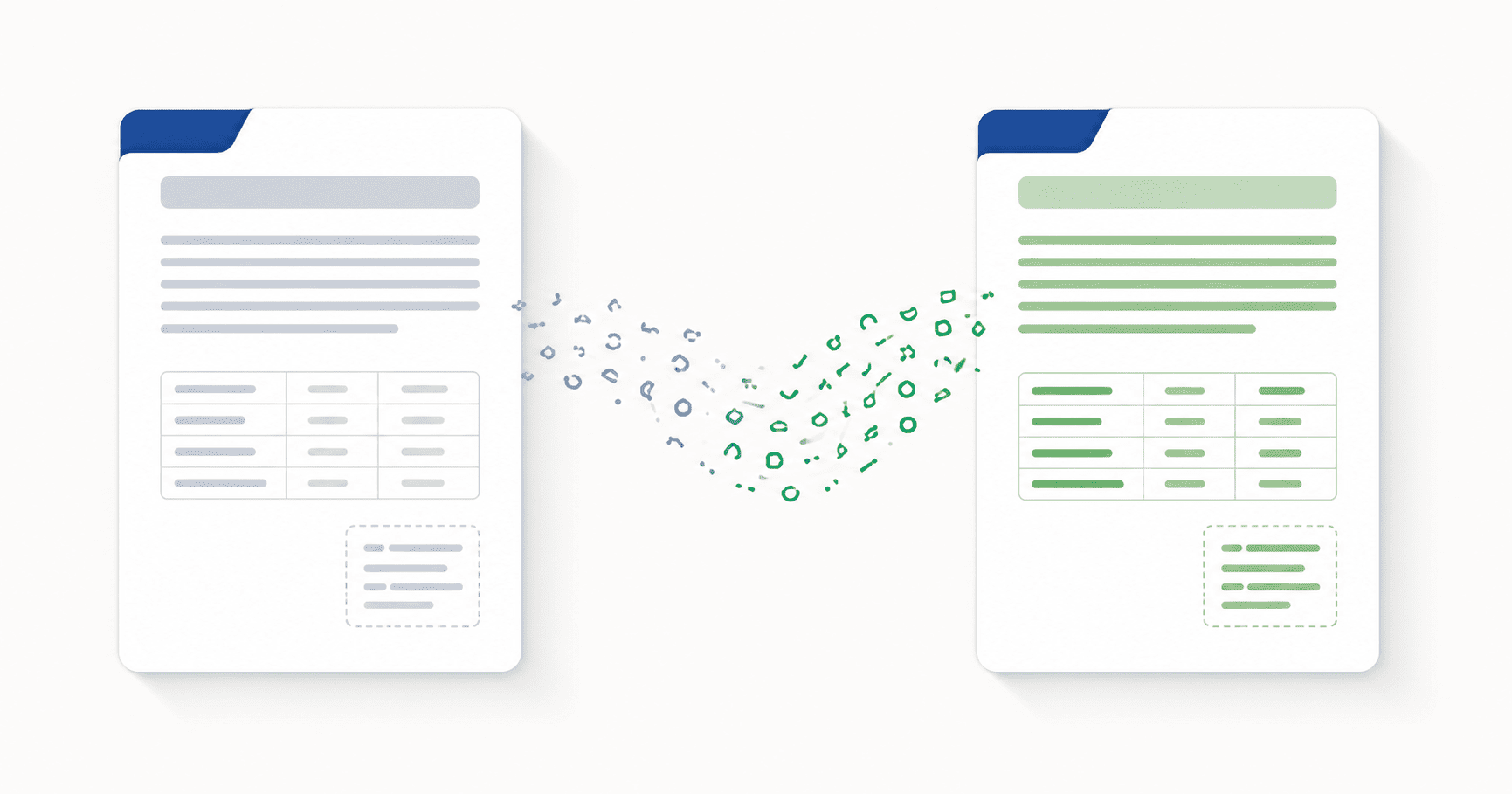
DocTranslating translates whole Word documents (.docx and legacy .doc) into 100+ languages in a single operation — no copying sections into Google Translate and pasting them back. Text boxes, footnotes, tables, hyperlinks and inline formatting are preserved in the output. Microsoft Azure gives the highest formatting fidelity for Office files, DeepL is best for natural-sounding output on European languages, and Google Cloud has the widest language coverage. Gemini does not accept Word files — convert to PDF first or use one of the other three engines.
Updated June 12, 2026 · 9 min read
If you've been translating a Word document by pasting sections into Google Translate and copying the results back into your file, you already know the two things that make that workflow painful: formatting breaks the moment translated text goes back into Word, and the process takes hours on any document longer than a few pages. This guide covers the faster way — translating the entire .docx (or legacy .doc) file at once and getting a translated Word document back with the layout intact.
Why translating a Word document preserves formatting so well
A .docx file is really a small archive of XML — every heading, paragraph, table cell, text box, footnote and hyperlink is a labelled element that a translator can identify and translate individually. This is very different from a PDF, where text has been flattened into positioned glyphs with no structure. Because Word documents carry that structure natively, a document translator can extract the text, translate it, and rebuild it back into the same labelled elements — so the output opens in Word with the same layout, styling and page flow as the original.
In practice, that means the following survive translation reliably:
- Headings and body styles — H1, H2, quote blocks, and any custom style stays applied.
- Tables — rows, columns, merged cells and cell alignment carry over.
- Text boxes — including those containing captions, callouts and pull-quotes.
- Footnotes and endnotes — numbering and placement stay attached to the right text.
- Inline formatting — bold, italic, underline, colour, and hyperlinks.
- Embedded images — pictures stay in place; the surrounding text reflows around them.
- Headers and footers — including page numbers.
Step-by-step: translate a Word document
- 1
Upload your .docx or .doc file
Drag your Word document onto the upload area or click to browse. DocTranslating detects the format automatically and only shows the translation engines that accept it. Modern .docx files work with three engines; legacy .doc files are supported by DeepL only.
- 2
Pick your source and target languages
Set the language the document is written in (or leave it on auto-detect) and the language you want it translated into. For Word documents, auto-detect is usually reliable because the text is clean — unlike scanned PDFs where OCR quality gets in the way.
- 3
Choose the right translation engine
Pick Microsoft Azure for the strongest formatting fidelity, DeepL for the most natural output on European languages, or Google Cloud for the widest language coverage. Gemini does not accept Word files. The next section explains when to use which.
- 4
Translate the whole document at once
Click Translate. The entire document is processed in one operation — you don't need to split it into chunks or translate section by section. When it finishes, download the translated .docx and open it in Word to verify the layout.
Which translation engine is best for Word documents?
All three engines that accept Word files preserve the overall layout, but they differ in fidelity on complex formatting, in file-size limits, and in whether they accept the legacy .doc format at all.
| Engine | Best for | Formats | Max file size |
|---|---|---|---|
| Microsoft Azure | Highest formatting fidelity — text boxes, footnotes, complex tables | .docx only | 20 MB |
| DeepL | Most natural output; only engine that accepts legacy .doc | .docx, .doc | 30 MB |
| Google Cloud | Widest language coverage | .docx only | 10 MB |
| Gemini | Not available for Word — accepts PDF and code files only | — | — |
What about tracked changes and comments?
This is the part where being honest matters. Machine translation APIs handle tracked changes and comments unpredictably across the industry — the underlying issue is that these features represent multiple versions of the same text (an original, a proposed revision, a reviewer's note), and translation pipelines are built to extract and translate a single canonical version. The three most common outcomes:
- Tracked changes get flattened — accepted changes are silently kept, rejected changes are silently dropped, and the revision history disappears from the translated file.
- Sections get omitted — DeepL in particular has a documented failure mode where tracked-changes markup causes whole paragraphs to be missing from the output.
- Comments get dropped — the comment threads usually don't appear in the translated document at all.
Translating old .doc files
Word documents saved before 2007 use the older binary .doc format. Of the three engines that translate Word files, only DeepL accepts .doc directly — Azure and Google Cloud need the modern .docx format. If your engine of choice is Azure or Google Cloud:
File size limits and long documents
The limits are 30 MB on DeepL, 20 MB on Azure and 10 MB on Google Cloud. Text-only Word documents are almost never that large — you usually only hit the limit when the file contains many embedded images. Two workarounds:
- Compress the embedded images inside Word — select any picture, then Picture Format → Compress Pictures. This is often enough to drop a 25 MB file to under 10 MB.
- Split the document — save it as two or more smaller files, translate each, and merge them back afterwards.
Right-to-left Word documents work cleanly
If you're translating a Word document written in Arabic, Hebrew or Persian — or translating into one of those languages — the good news is that Word documents don't have the RTL extraction problem that PDFs do. Because .docx carries text in logical reading order (not visual draw order), the words come out correctly and the layout mirrors properly. This is the opposite story from PDFs, where translating from a scanned RTL source is still a current limitation. If you have both an editable Word file and a PDF export of the same document, translate the Word file.
Frequently asked questions
How do I translate a whole Word document at once?
Upload the .docx or .doc file to DocTranslating, pick your source and target languages, choose Microsoft Azure, DeepL or Google Cloud, and click Translate. The entire document is processed in a single operation and downloaded as a translated Word file — you don't need to split it into sections or copy anything into Google Translate.
What's the best DOCX translator online?
It depends on what you need. Microsoft Azure gives the highest formatting fidelity for Office files — text boxes, footnotes and complex tables survive most reliably. DeepL produces the most natural-sounding output for European languages and is the only engine that accepts legacy .doc files. Google Cloud has the widest language coverage. Gemini does not translate Word documents.
Can I translate a Word document without losing formatting?
Yes. Because .docx files carry document structure natively (headings, tables, text boxes, footnotes are all labelled elements), a document translator can extract each element, translate it, and put it back — so the translated file opens in Word with the same layout, styling and inline formatting as the original.
Can I still translate old .doc files?
Yes, but only through the DeepL engine — Microsoft Azure and Google Cloud require the modern .docx format. If you need to use Azure or Google Cloud, save the file as .docx from Word first (File → Save As → Word Document), or use the DOC-to-DOCX converter on PDFEquips.
Will tracked changes and comments be preserved when I translate my Word document?
Not reliably. Machine translation APIs handle tracked changes and comments unpredictably across the industry — they usually get flattened, dropped, or (in the case of DeepL) can cause whole paragraphs to be omitted from the output. Before uploading, accept or reject all tracked changes in Word (Review → Accept All or Reject All) so you're sending a clean, single-version document. If comments need to survive translation, translate them separately.
What's the maximum Word document size I can translate?
30 MB on DeepL, 20 MB on Microsoft Azure and 10 MB on Google Cloud. Text-only documents rarely approach these limits — you usually only hit them when the file contains many embedded images. If yours is too large, compress the images inside Word (Picture Format → Compress Pictures) or split the document into smaller files, translate each and merge them back.
Can I translate a Word document into Arabic, Hebrew or Persian?
Yes, and cleanly. Unlike PDFs, Word documents carry text in logical reading order, so translation into right-to-left languages produces a properly mirrored, correctly-flowing output. Word is the recommended format when your target (or source) language is RTL.
Can I translate a password-protected Word file?
No — encrypted Word files can't be read by translation APIs until they're unlocked. Remove the password in Word first (File → Info → Protect Document → Encrypt with Password, then delete the password and save), then upload the unlocked file.
Why does copying and pasting from Google Translate into Word break the formatting?
Google Translate's text interface returns plain-text translations that don't carry the formatting metadata your Word document uses (styles, tables, list numbering, hyperlinks). When you paste that plain text back into Word, it either loses the formatting entirely or inherits the styling of whatever paragraph you pasted into. A document translator avoids this by translating the .docx file directly — the formatting stays with the original elements throughout, so nothing has to be reapplied afterwards.