Getting started
How to translate a document without losing its formatting
DocTranslating translates PDF, Word, PowerPoint, Excel, code and subtitle files into 100+ languages while keeping the original layout, fonts, tables and images in place. Upload a file, pick a language and one of four translation engines (DeepL, Microsoft Azure, Google Cloud or Gemini), then download a translated copy that looks like the original. This guide covers the full process plus the real-world edge cases — scanned PDFs, footnotes and text boxes, terminology consistency, file-size limits and right-to-left languages.
Updated August 23, 2026 · 11 min read
Most translation tools either strip your document down to plain text or scramble its layout. DocTranslating works differently: it extracts the text, translates it, and rebuilds it back into a copy of your original document, so paragraphs, tables, headings and images stay where you put them. This is a complete walkthrough — from upload to download — plus honest answers to the questions people actually run into: which engine to use, how well footnotes and text boxes survive, what happens with scanned PDFs, how to keep terminology consistent, and where the current limits are.

What you can translate
Different engines accept different file types. The table below shows what each format works with — pick a file type first, and DocTranslating only offers the engines that support it.
| File type | Supported engines |
|---|---|
| PDF (.pdf) | DeepL, Google Cloud, Gemini |
| Word (.docx) | DeepL, Azure, Google Cloud |
| PowerPoint (.pptx) | DeepL, Azure, Google Cloud |
| Excel (.xlsx) | DeepL, Azure, Google Cloud |
| Plain text (.txt) | DeepL, Azure, Google Cloud |
| Legacy Office (.doc, .ppt, .xls) | DeepL |
| Code files (20+ languages) | Gemini |
| Images (.png, .jpg) | DeepL |
| Subtitles (.srt) | DeepL, Gemini |
| Localization files (.xliff, .po, .vtt) | Gemini; .xliff also DeepL & Azure |
Step-by-step: translate your first document
- 1
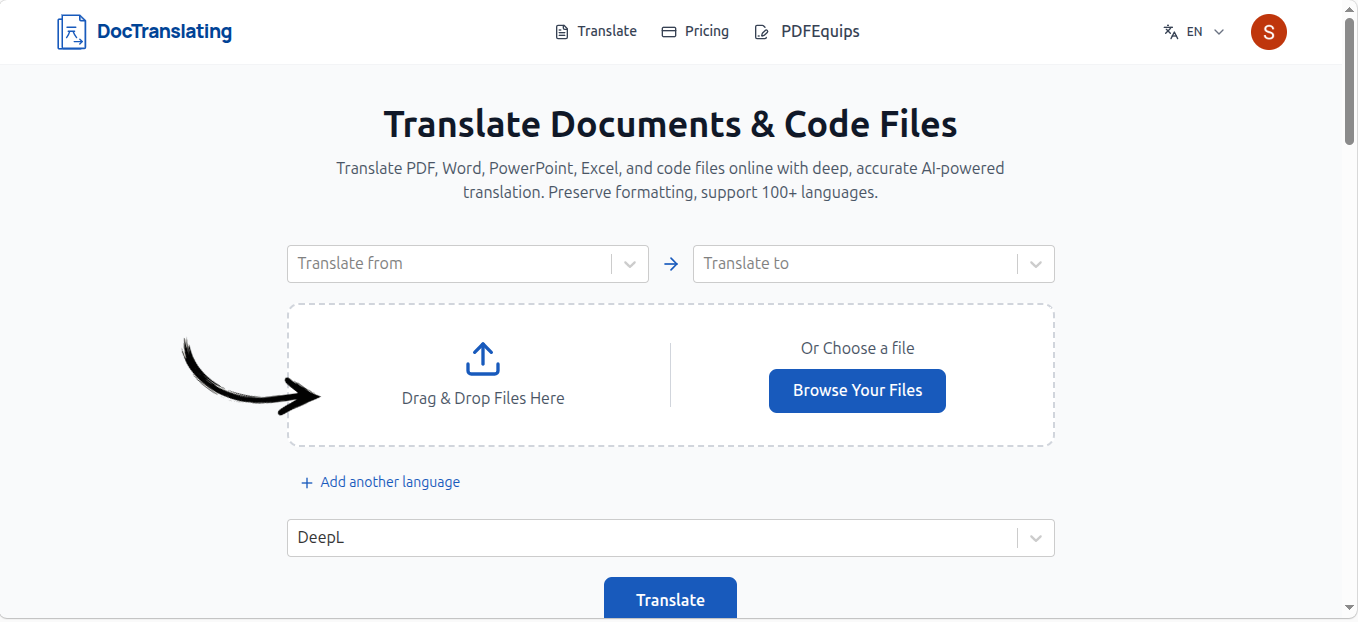
Upload your document
Drag your file onto the upload area, or click to browse. DocTranslating detects the file type automatically and only shows the translation engines that support it.
- 2
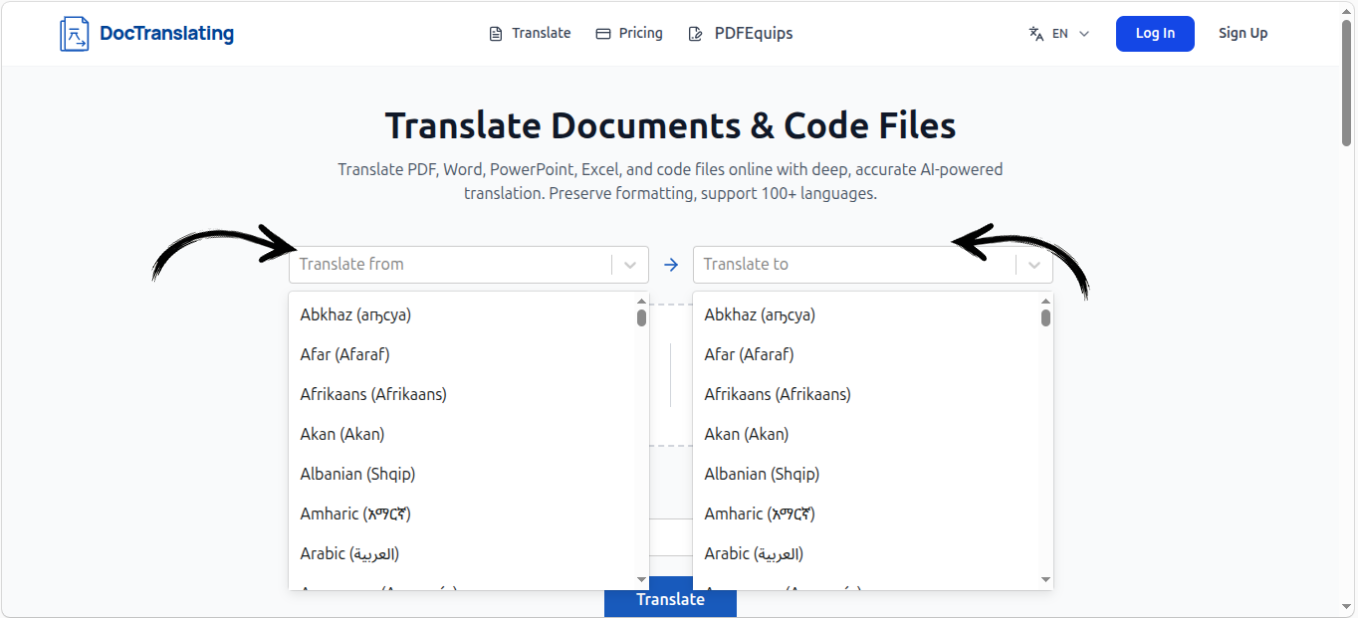
Choose your source and target languages
Set the language your document is written in (or leave it on auto-detect) and the language you want it translated into. Start typing to filter the list of 100+ languages.
- 3
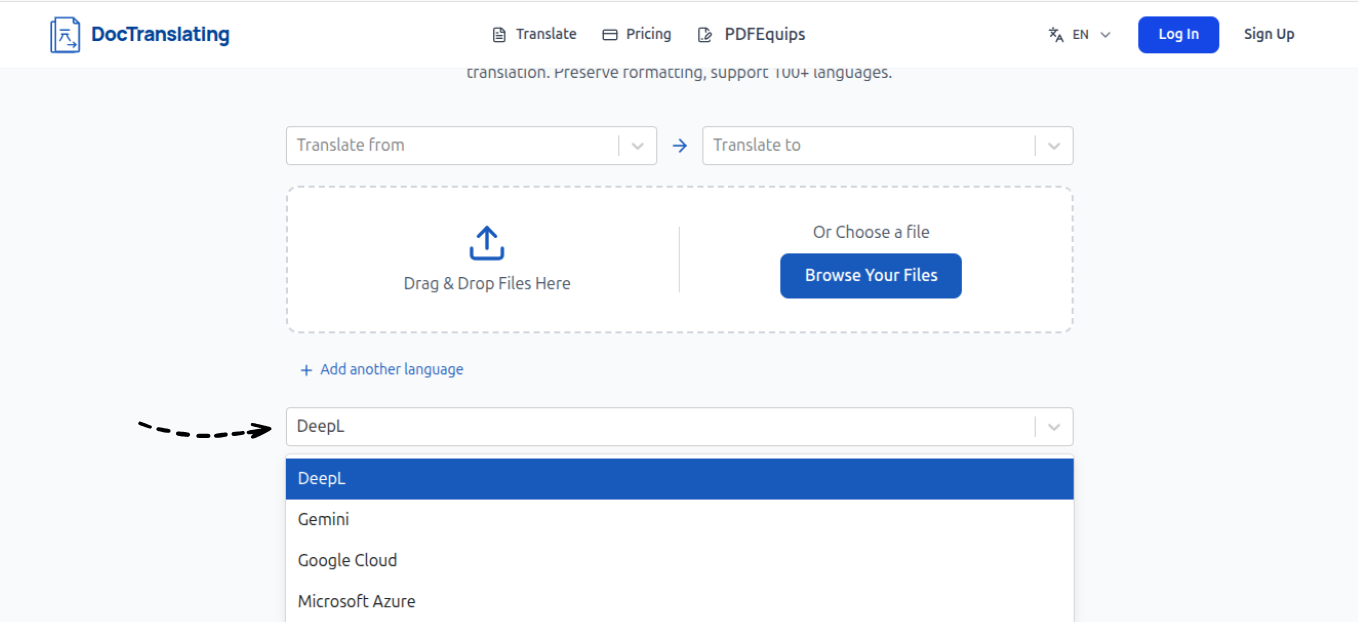
Pick a translation engine
Choose between DeepL, Microsoft Azure, Google Cloud and Gemini. Each has different strengths, file-type support and limits — the next section explains exactly when to use which.
- 4
Start the translation
Click Translate. DocTranslating extracts the text, translates it, and reflows it back into a copy of your original document while preserving the layout. Larger files take longer because each page is processed individually.
- 5
Download your translated file
When it finishes, download the translated document in the same format you uploaded. Open it to confirm the layout matches the original before you use it.
Choosing the right translation engine
All four engines preserve formatting, but they differ in quality, file-type support, file-size limits and how they handle complex layouts. Here is the quick reference, followed by the details and the workaround for each engine's main limitation.
| Engine | Best for | Max file size | Page limit |
|---|---|---|---|
| DeepL | Natural quality, Office files, images | 30 MB | Unlimited |
| Microsoft Azure | Office formatting fidelity | 20 MB | Unlimited |
| Google Cloud | Widest language coverage | 10 MB | Unlimited |
| Gemini | Layout-heavy PDFs, code, consistency control | 100 MB | 25 pages |
DeepL
DeepL produces the most natural output for the European languages it supports, and it accepts the widest range of everyday files — PDF, all Office formats, plain text, images and subtitles. Its main constraints are a 30 MB file-size limit and the way it segments text (covered in the consistency section below).
Microsoft Azure
Azure is the most reliable engine for Office documents — text boxes, inline formatting and footnotes survive best here. The catch is that it only accepts the modern Office formats (.docx, .pptx, .xlsx) plus text and a few markup formats; it does not accept PDFs or legacy .doc / .ppt / .xls files.
Google Cloud
Google Cloud covers the widest list of languages and handles both PDFs and Office files. Two things to know: it has the smallest file-size limit at 10 MB, and it adds a small watermark to translated PDFs.
Gemini
Gemini is the LLM-based engine. It is the best choice for layout-heavy PDFs, source code and localization files, and it uniquely lets you pass custom instructions to keep terminology and tone consistent (see below). It accepts files up to 100 MB but caps each file at 25 pages, and it only handles PDFs, code and translation/subtitle formats — not .docx, .pptx or .xlsx.
How well is formatting actually preserved?
It depends on the file type and engine, so it is worth being precise about what survives and what can drift.
- Word and PowerPoint expose their structure natively, so text boxes, inline formatting (bold, italic, hyperlinks) and footnotes are preserved reliably. Azure is the strongest here, with DeepL and Google Cloud close behind.
- PDFs are messier — and that is true across the whole industry, not just one tool. A PDF doesn't carry semantic structure, so footnotes and floating text boxes can shift depending on how the original was authored. Simple PDFs come out very clean; complex, design-heavy layouts are where drift shows up.
Translating scanned PDFs (OCR)
Scanned PDFs have no real text layer — they are pictures of text — so there is nothing to translate until the text is extracted first. DocTranslating now has a dedicated OCR PDF tool for exactly this. When you upload a scanned PDF on the translate page, the app detects it and shows a notice — "This document appears to be scanned. To translate it accurately, run it through our OCR tool first to extract the text — then come back to translate." — with a button to open the OCR tool.
The OCR PDF tool takes your scanned PDF and returns a new, searchable PDF with a real text layer. It supports 50+ languages and can even read handwritten text. Once you have the OCR'd file back, return to the translate page and translate it like any normal document. The DeepL engine can also translate image files (.png, .jpg) directly.
Keeping terminology, tone and gender consistent
This is the single biggest pain point in document translation, so it's worth understanding clearly. DeepL translates with sentence-level segmentation and a small context window, which means it can't reliably carry information across sentences. Two practical consequences: a term like jurisdiction can be rendered several different ways through one document, and pronoun gender gets lost in languages that don't mark it grammatically — a known problem when translating into Turkish, Finnish, Hungarian and similar languages. Glossaries don't fully fix this because they fail on word forms.
The Gemini engine handles this differently. Because it's LLM-based with a much larger context window, it can hold consistency, and it gives you an optional instructions field where you pass guidance along with the translation — for example: the subject of the document is male, translate ‘jurisdiction’ the same way throughout, use a formal tone, or keep dates in DD/MM/YYYY. Those instructions are applied to every page, so you get far better consistency than glossary-based approaches.
Right-to-left source documents (Arabic, Hebrew, Persian)
Translating into a right-to-left language works correctly — the result is mirrored and aligned properly. Translating from an RTL language is where there's a current limitation, and it's specific to PDFs: the PDF text-extraction layer returns content in visual draw order rather than logical reading order, so the words can come out jumbled before translation even starts. The layout looks right, but the text inside is scrambled. RTL Word and PowerPoint files are fine because their structure is native; it's RTL PDF sources that are affected. This is a real limitation that isn't solved yet.
Subtitle, localization and translation files
Beyond office documents, DocTranslating handles the formats translators and developers work with: subtitle files (.srt on DeepL and Gemini, .vtt on Gemini), gettext localization files (.po, .pot on Gemini), and XLIFF (.xliff, .xlf) on DeepL, Azure and Gemini, plus tabular .csv / .tsv. Highly specialized desktop-publishing formats such as FrameMaker .mif aren't supported. If you have a localization file in a standard interchange format, XLIFF is your safest bet.
Tips for the best results
- Translate the editable source file (Word, PowerPoint) when you have it — it reflows more cleanly than a flattened PDF.
- For scanned PDFs, run them through the OCR PDF tool first to get a clean text layer, and verify the extracted text before translating.
- On layout-heavy PDFs, reach for the Gemini engine and use the instructions field to lock down terminology and tone.
- Dense layouts may need minor spacing tweaks if the target language runs much longer than the source.
- Always open the finished file and check it against the original before using it — especially for tables, footnotes and right-to-left text.
Frequently asked questions
Can I translate a PDF without losing its formatting?
Yes. DocTranslating extracts the text from your PDF, translates it, and rebuilds it into a copy of the original so the layout, fonts, tables and images stay in place. Simple PDFs come out very clean; for complex, design-heavy layouts the Gemini engine preserves structure best.
What file types can DocTranslating translate?
PDF, Word, PowerPoint, Excel and plain text across DeepL, Azure and Google Cloud; source code on Gemini; images (PNG, JPG) on DeepL; subtitles (SRT) on DeepL and Gemini; and localization files such as XLIFF and gettext PO. The available engines change automatically depending on the file you upload.
Does it handle text boxes, footnotes and inline formatting?
For Word and PowerPoint, yes — text boxes, bold/italic/hyperlink formatting and footnotes are preserved reliably because the file structure exposes them natively, with Azure the most reliable engine. For PDFs it's less certain: PDFs carry no semantic structure, so footnotes and floating text boxes can drift on complex layouts, which is a limitation across the whole industry.
Can DocTranslating translate scanned PDFs?
Yes. Scanned PDFs need their text extracted first, so DocTranslating has a dedicated OCR PDF tool for it. When you upload a scanned PDF on the translate page, the app prompts you to run it through the OCR tool first — it supports 50+ languages and even handwritten text, and returns a searchable PDF. Once you have that file, come back and translate it like any normal document. Extracting the text as its own step lets you verify it's correct before translating. If you prefer, the OCR converter on PDFEquips is a free alternative.
How do I keep terminology, tone and gender consistent?
Use the Gemini engine, which has a large context window and an instructions field where you can specify things like the subject's gender, a fixed translation for a key term, a formal tone, or a date format. These instructions apply to every page. DeepL, by contrast, uses sentence-level segmentation that struggles with consistency and with gender in languages like Turkish or Finnish.
What is the maximum file size, and can I translate large PDFs?
Limits are 30 MB on DeepL, 20 MB on Azure, 10 MB on Google Cloud and 100 MB on Gemini, with Gemini also capped at 25 pages per file. If a file is too large, compress it with the PDF compressor on PDFEquips; if a PDF exceeds Gemini's 25-page limit, split it into smaller parts on PDFEquips, translate each, and merge them back.
Will my translated PDF have a watermark?
Only the Google Cloud engine adds a small watermark to translated PDFs. To get a clean PDF, choose a different engine, or convert your PDF to Word on PDFEquips and translate the editable version instead.
Can I translate from Arabic, Hebrew or other right-to-left languages?
Translating into right-to-left languages works correctly. Translating from an RTL language works for Word and PowerPoint, but RTL PDF sources are a current limitation: the PDF text-extraction returns text in visual order rather than reading order, so it can come out jumbled. For scanned RTL PDFs, the OCR PDF tool reads Arabic, Hebrew and Persian in the correct order. If you have the original editable file, translate that instead of the PDF.
Does it support XLIFF, SRT and other localization formats?
Yes. XLIFF (.xliff, .xlf) is supported on DeepL, Azure and Gemini; SRT subtitles on DeepL and Gemini; and VTT plus gettext PO/POT on Gemini. Specialized desktop-publishing formats like FrameMaker MIF aren't supported — for localization work, XLIFF is the most widely supported interchange format.
Can I test it on a couple of pages before committing?
Yes. Pricing is usage-based — you get a monthly character allowance, and if you run out you simply recharge and keep translating. That means you can start small and only pay for what you actually translate, without a large upfront commitment.