How-to
How to translate a scanned PDF file
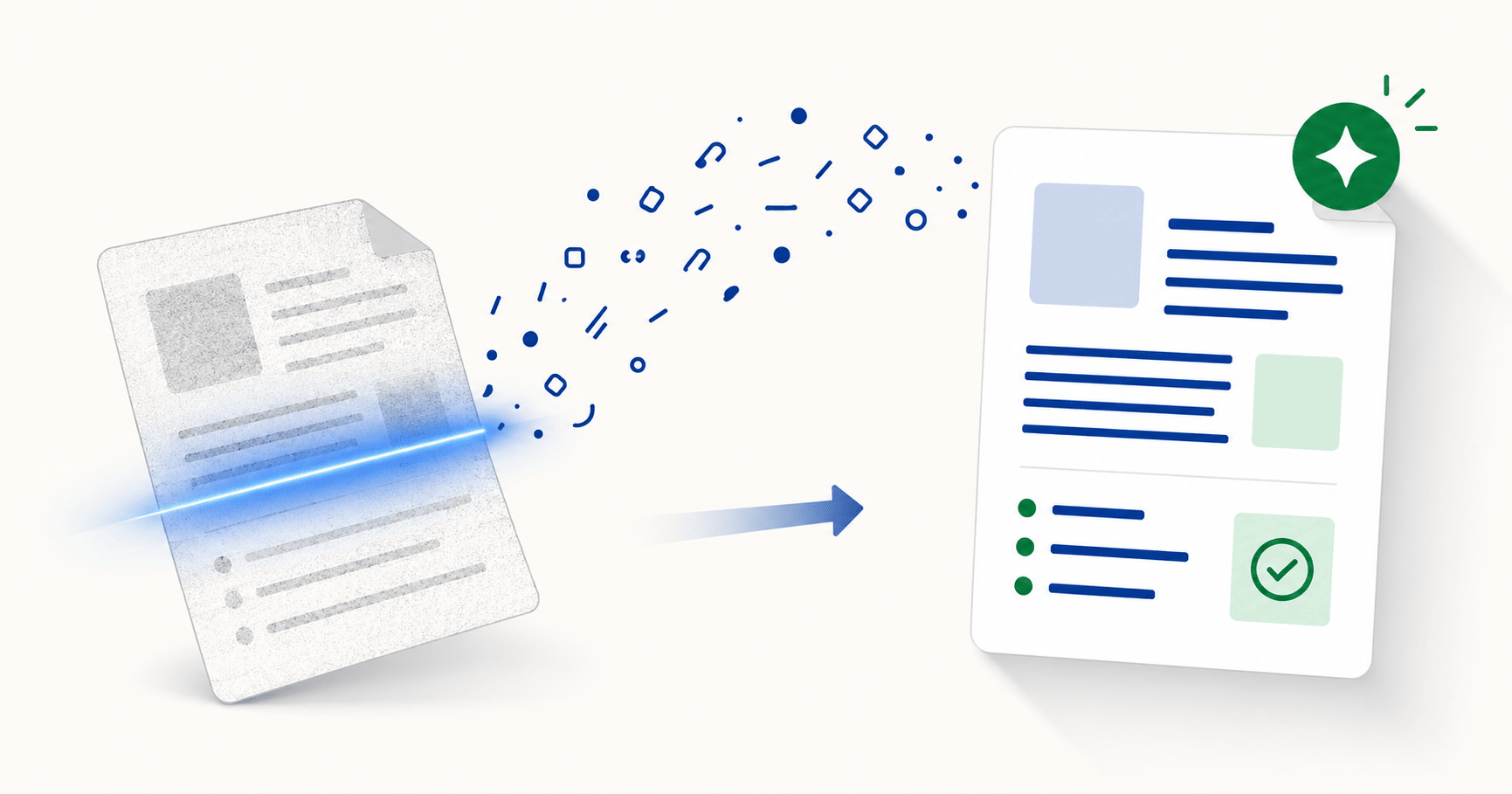
Scanned PDFs are images of text, not actual text — which is why most translators including Google Translate either reject them, return an empty result, or show a "can't translate this file" error. To translate a scanned PDF you need OCR (text extraction) before translation. DocTranslating runs OCR automatically as part of the translation pipeline, supports 100+ languages, and rebuilds the translated text into a copy of the original PDF. For accuracy on important documents, verify the OCR output first on PDFEquips so extraction errors don't compound with translation errors.
Updated June 5, 2026 · 8 min read
If you've ever uploaded a scanned PDF to a free translator and gotten back an empty file, a "can't translate this file" error, or a translated copy with all the text missing — you're not doing anything wrong. Most online translators, including the free document upload in Google Translate, don't run OCR on scanned content. This guide explains why that happens, what you actually need to translate a scanned PDF, and how to do it without losing the original layout.
Why scanned PDFs won't translate normally
A normal PDF — one exported from Word, an editor, or a browser — has a hidden text layer that translators read directly. A scanned PDF doesn't. When you scan a document, your scanner or phone camera captures a picture of each page. The result looks like text, but to a computer it's just an image — there's nothing extractable underneath. That's why selecting text in a scanned PDF usually doesn't work either: there are no characters to select, only pixels.
Most translation tools assume the text layer is already there. When they don't find it, they fail in confusing ways. Common symptoms include:
- The translator returns an empty file, or a copy that looks identical to the original.
- You get a "can't translate this file" or "unable to translate this document" message.
- Only digitally-embedded elements (page numbers, watermarks, form fields) get translated.
- The download button stays greyed out, or the job appears to finish but produces nothing usable.
- The same file works in one tool but fails in another, with no clear explanation.
What you actually need: OCR + translation
Translating a scanned PDF is a two-step process under the hood, even when a single tool handles both:
- OCR reads each page image and extracts the recognisable text — words, numbers, and basic layout.
- Translation takes that extracted text, translates it, and writes it back into a copy of the document.
DocTranslating runs both steps automatically when you upload a scanned PDF — you don't need to OCR it yourself first. The catch worth understanding upfront: translation quality can only ever be as good as the OCR that feeds it. A blurry scan produces blurry OCR, and blurry OCR plus translation compounds the errors. The result can look fluent and still be subtly wrong, so important documents are worth verifying before relying on them.
Step-by-step: translate a scanned PDF
- 1
Open DocTranslating and upload your scanned PDF
Drag the file onto the upload area, or click to browse. The tool detects the file is a PDF; you don't need to do anything special to flag it as scanned — OCR runs automatically when needed.
- 2
Set your source and target languages
Pick the language the document is written in and the language you want to translate it into. For scanned PDFs, set the source language explicitly rather than relying on auto-detect — auto-detection is less reliable on OCR'd text than on clean text.
- 3
Choose the Gemini engine
For scanned PDFs, Gemini is the strongest choice. It's LLM-based, so it uses surrounding context to infer meaning when OCR produces partially garbled words, while sentence-level engines like DeepL pass garbled words through unchanged. You can also write custom instructions to keep terminology consistent across the document.
- 4
Translate, then review the result carefully
Start the translation, download the file when it's ready, and compare it page-by-page with the original. Pay special attention to numbers, dates, proper nouns, addresses and anything legally important — these are where OCR errors typically hide because they don't have surrounding context the translator can use to self-correct.
Which translation engine is best for scanned PDFs?
All DocTranslating engines that accept PDFs run OCR on scanned content, but they handle imperfect OCR output very differently. No OCR is 100% accurate — the real question is how the translator copes when it sees a partially garbled word.
| Engine | Behaviour on OCR output | When to use it |
|---|---|---|
| Gemini | LLM-based; uses context to infer meaning when OCR is imperfect | Default choice for any scanned PDF |
| DeepL | Sentence-level translation; garbled words come out garbled | Clean, high-quality scans only |
| Google Cloud | Robust to noise, but adds a small watermark to translated PDFs | Widest language coverage; files under 10 MB |
| Microsoft Azure | Doesn't accept PDFs at all | Convert the PDF to Word first (see below) |
Improving OCR before you translate
OCR quality depends almost entirely on the input. A clean, properly-rotated scan at decent resolution produces near-perfect OCR; a faded, skewed, low-resolution scan produces unreliable OCR no matter which tool runs it. A few things worth doing before you upload:
- Rescan at 300 DPI or higher if you have access to the physical document. Lower resolutions blur characters and OCR misreads them.
- Straighten skewed pages — OCR engines expect text on horizontal lines.
- Increase contrast on faded or grey scans so characters stand out from the background.
- Confirm the file isn't password-protected — encrypted PDFs can't be read until decrypted.
- Set the source language explicitly, especially for non-Latin scripts (Arabic, Chinese, Cyrillic, Devanagari). Auto-detection on OCR'd text is much less reliable than on clean text.
Edge cases and current limitations
Handwritten documents
OCR for printed text is mature and reliable. OCR for handwritten text is much harder, and results are inconsistent across the whole industry — not just one tool. If your scanned PDF is handwritten, expect significant manual cleanup, and for anything legally sensitive prefer manual transcription over machine OCR.
Large or long scans
The Gemini engine caps each file at 25 pages and 100 MB. Longer or larger scans need a workaround:
Scanned PDFs in right-to-left languages
If you're translating a scanned PDF written in Arabic, Hebrew or Persian, there is a current limitation worth knowing: the PDF text-extraction layer can return RTL content in visual draw order rather than logical reading order, which means even OCR'd words can come out scrambled before translation starts. RTL Word and PowerPoint files work fine, and translating into an RTL language works fine — it's RTL PDF sources that are affected. If you have access to the original editable file, translate that instead. Otherwise this is being worked on but isn't solved yet.
Frequently asked questions
Why can't Google Translate translate my scanned PDF?
Google Translate's document upload reads the existing text layer of a PDF — it doesn't OCR image-based pages. Because a scanned PDF has no text layer, there's nothing to read, so Google Translate either returns an empty file or a "can't translate this file" message. The fix is to use a translator that includes OCR, or to OCR the PDF separately first and then upload the searchable copy.
How can I tell if my PDF is scanned or has a real text layer?
Open the PDF and try to select a sentence with your cursor. If text highlights and you can copy it, the PDF has a real text layer and any translator should handle it. If nothing happens — or you can only select the whole page as one image — it's scanned and needs OCR before translation.
Can I translate a scanned PDF for free?
Most free translators, including the document upload in Google Translate, don't run OCR on scanned PDFs, so they'll return an empty result or an error. Free tools that do include OCR usually have low size limits and limited language coverage. DocTranslating runs OCR automatically and supports 100+ languages with usage-based pricing, so you pay for what you translate rather than a recurring subscription.
Which translation engine is best for scanned PDFs?
Gemini is the strongest choice in DocTranslating. As an LLM-based engine it uses surrounding context to interpret meaning even when OCR introduces small errors, while sentence-level engines like DeepL pass garbled words through unchanged. Google Cloud is also robust on scans but adds a small watermark to translated PDFs.
Can I translate a handwritten scanned document?
OCR on handwriting is much less reliable than OCR on printed text — this is true across the whole industry, not just one tool. For anything legally sensitive or requiring high accuracy, manual transcription before translation is the safer route. For casual handwritten notes, OCR plus translation may produce a workable draft you can clean up afterward.
What if my scanned PDF is larger than the file size limit?
Compress the PDF using the PDF compressor on PDFEquips — it can typically halve a scan's size without visible quality loss. If the PDF is also long, split it into chunks of 25 pages or fewer with PDFEquips' splitter, translate each piece, and merge them back into a single document.
Will the translated PDF keep the original layout?
Yes — DocTranslating rebuilds the translated text into a copy of the original document, preserving paragraphs, tables, headings and images. For scanned PDFs specifically, layout fidelity depends on how clearly the original was structured: simple documents come out almost identical; densely-formatted scans may show some drift.
How do I check the OCR is accurate before committing to translate?
Run OCR separately first using the OCR tool on PDFEquips. It produces a searchable PDF where you can copy out the recognised text and read through it. If any names, dates or critical phrases came out wrong, fix them at the source before sending the file to translation — errors at the OCR stage compound with translation errors and are much easier to catch early.
I'm translating from a scanned Arabic PDF — does it work?
Translating into Arabic works correctly. Translating from a scanned Arabic (or Hebrew, Persian) PDF currently has a limitation: the PDF text-extraction layer can return right-to-left text in visual order rather than logical reading order, so the words can come out scrambled. RTL Word and PowerPoint files are fine; it's RTL PDF sources specifically that are affected, and this is a known limitation being worked on.
Is the translated scanned PDF editable?
The output is a copy of the input format, so a scanned PDF input gives you a translated PDF. If you want an editable file at the end, convert the original scanned PDF to Word first using PDFEquips' PDF-to-Word converter (it runs OCR as part of the conversion), then translate the .docx — you'll get an editable Word document back instead of a PDF.