How-to
How to extract text from a scanned PDF
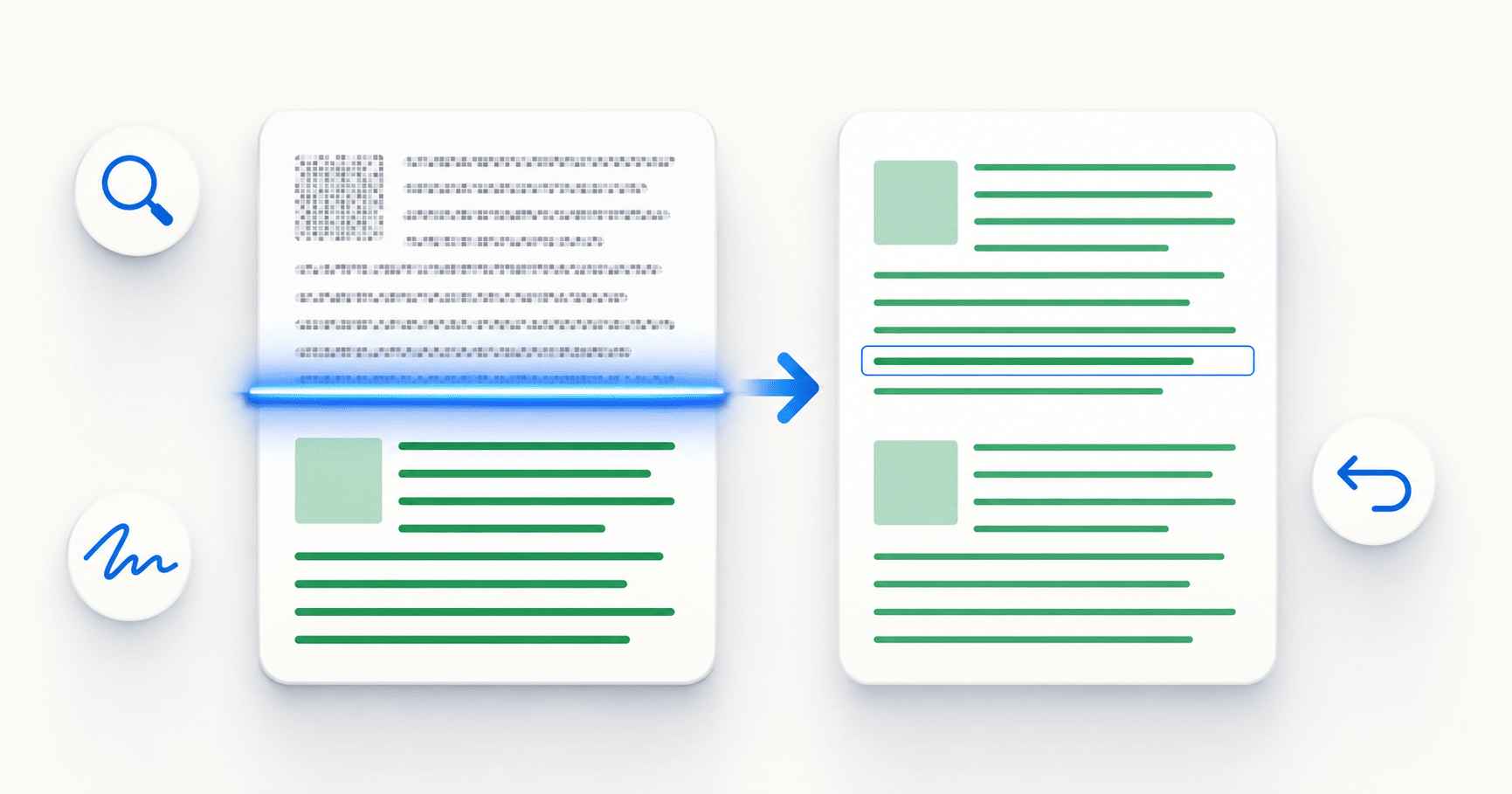
A scanned PDF is an image of text, so you can't select, search, copy or translate it. DocTranslating's OCR PDF tool converts a scanned or image-based PDF into a real, selectable text layer in a few clicks: open the tool, upload your scan, optionally set the document language for faster and more accurate results, and click Extract text. It supports 50+ languages, handwritten text and right-to-left scripts like Arabic and Hebrew. Once you have the OCR'd PDF back, you can translate it, search it, or copy from it like any normal document.
Updated June 19, 2026 · 8 min read
If you've tried to select text in a PDF and nothing highlights, or searched it with Ctrl+F and got no results, your PDF is scanned — it's a picture of a page, not text. That's also why translating it, copying from it, or editing it doesn't work. The fix is OCR (Optical Character Recognition), which reads the image and builds a real text layer underneath. This guide shows how to do that with DocTranslating's OCR PDF tool, and what to do with the result.
How do I know if my PDF is scanned?
Three quick checks tell you whether a PDF needs OCR:
- Try to select a line of text. If your cursor won't highlight individual words — or selects the whole page as one image — it's scanned.
- Search with Ctrl+F (Cmd+F on Mac). If a word you can clearly see returns no match, there's no text layer to search.
- Watch for the in-app notice. When you open a scanned file in DocTranslating, a banner appears reading "This document appears to be scanned…" with an Open OCR PDF Tool button — the app has detected there's no usable text layer.
Step-by-step: extract text from a scanned PDF
- 1
Open the OCR PDF tool
Go to the OCR PDF tool directly, or — if you were already trying to translate a scanned file — click the "Open OCR PDF Tool" button on the "This document appears to be scanned" notice. Both routes open the same tool.
- 2
Upload your scanned PDF
Select the scanned or image-based PDF you want to convert. This is the file where text currently can't be selected or searched.
- 3
Optionally set the document language
If you know the language of the document, set it. This is optional — the tool auto-detects language — but specifying it gives faster and more accurate results, especially for non-Latin scripts like Arabic, Chinese, Cyrillic or Devanagari, and for handwritten text.
- 4
Click Extract text and download the result
The tool reads the pages and rebuilds a real, selectable text layer while keeping the original look of the document. Download the OCR'd PDF — you can now select, search and copy its text, and it's ready to be translated.
What the OCR PDF tool handles well
DocTranslating's OCR is one of the most capable engines available, and it goes well beyond simple printed English:
- 50+ languages — including languages with non-Latin scripts.
- Handwritten text — clear handwriting is recognised, not just printed type.
- Right-to-left scripts — Arabic, Hebrew and Persian are handled with good accuracy, including correct reading order.
- Mixed-language pages — documents containing more than one language on a page.
- Everyday scan quality — photos of documents and typical office scans, not just pristine flatbed output.
After OCR: translate your document
Once you have the OCR'd PDF, translating it is the same as translating any normal PDF — upload it, choose your languages and a translation engine, and download the translated copy. Running OCR first, as a separate step, has one big advantage: you can read through the extracted text and confirm it's correct before you translate. Translating an unverified scan risks compounding two kinds of error — a misread word becomes a confidently mistranslated word — so checking the OCR output first is the single best way to get an accurate final translation.
Tips for the best OCR results
OCR accuracy depends heavily on the quality of the scan you feed it. A few things noticeably improve results:
- Set the document language when you know it — it's the single easiest way to improve accuracy and speed.
- Use a clear, straight scan. Rescan skewed or rotated pages so the text sits on horizontal lines.
- Prefer higher resolution. Scans around 300 DPI or higher give the OCR sharper characters to work with than low-resolution images.
- Improve contrast on faded documents so the text stands out clearly from the background.
- Make sure the file isn't password-protected — encrypted PDFs can't be read until they're unlocked.
Alternative: OCR on PDFEquips
If you're already working inside PDFEquips — for example converting, compressing or merging PDFs — it also has an OCR tool you can use to make a scanned PDF searchable. Either route gives you an OCR'd file you can then bring back to DocTranslating to translate. Use whichever fits your workflow.
Frequently asked questions
How do I extract text from a scanned PDF?
Open DocTranslating's OCR PDF tool, upload your scanned PDF, optionally set the document language for faster and more accurate results, and click Extract text. The tool rebuilds a real, selectable text layer while keeping the document's original appearance, and you download an OCR'd PDF you can select, search, copy and translate.
How can I tell if a PDF is scanned or has real text?
Try to select a line of text with your cursor, or search the document with Ctrl+F (Cmd+F on Mac). If you can't highlight individual words, or a clearly visible word returns no search result, the PDF is scanned and needs OCR. In DocTranslating, opening a scanned file also shows a "This document appears to be scanned" notice with an Open OCR PDF Tool button.
Can it extract handwritten text from a PDF?
Yes. The OCR PDF tool recognises handwritten text in addition to printed type. Clear, legible handwriting gives the best results; very messy or stylised handwriting is harder for any OCR system, so results vary with legibility.
Does OCR work for Arabic, Hebrew and other right-to-left languages?
Yes. The OCR PDF tool supports right-to-left scripts including Arabic, Hebrew and Persian, and reconstructs the correct reading order — which is exactly the part that's normally hardest with scanned RTL documents. This makes the extracted text usable for searching and translation rather than coming out scrambled.
How many languages does the OCR PDF tool support?
50+ languages, including many with non-Latin scripts. You can let the tool auto-detect the language, or set it manually for faster and more accurate extraction — setting the language is especially helpful for non-Latin and handwritten documents.
Do I need to run OCR before translating a scanned PDF?
It's the recommended approach. Running OCR as a separate first step lets you verify the extracted text is correct before translating, so recognition mistakes don't get carried into another language. Once you have the OCR'd PDF, translate it exactly as you would any normal PDF.
Will OCR change how my document looks?
No — the OCR PDF tool keeps the original appearance of the document and adds a selectable text layer to it. Your scan looks the same; the difference is that its text can now be selected, searched, copied and translated.
Why won't Google Translate or other tools translate my scanned PDF?
Most translators only read a PDF's existing text layer, and a scanned PDF doesn't have one — it's an image. That's why they return an empty file or an error. Extracting the text with OCR first gives the document a real text layer, after which it can be translated normally.