Getting started
How to translate a document without losing its formatting
DocTranslating translates PDF, Word, PowerPoint, Excel, code and subtitle files into 100+ languages while keeping the original layout, fonts, tables and images in place. Upload a file, pick a language and one of four translation engines (DeepL, Microsoft Azure, Google Cloud or Gemini), then download a translated copy that looks like the original. This guide covers the full process plus the real-world edge cases — scanned PDFs, footnotes and text boxes, terminology consistency, file-size limits and right-to-left languages.
Updated May 22, 2026 · 11 min read
Most translation tools either strip your document down to plain text or scramble its layout. DocTranslating works differently: it extracts the text, translates it, and rebuilds it back into a copy of your original document, so paragraphs, tables, headings and images stay where you put them. This is a complete walkthrough — from upload to download — plus honest answers to the questions people actually run into: which engine to use, how well footnotes and text boxes survive, what happens with scanned PDFs, how to keep terminology consistent, and where the current limits are.
What you can translate
Different engines accept different file types. The table below shows what each format works with — pick a file type first, and DocTranslating only offers the engines that support it.
| File type | Supported engines |
|---|---|
| PDF (.pdf) | DeepL, Google Cloud, Gemini |
| Word (.docx) | DeepL, Azure, Google Cloud |
| PowerPoint (.pptx) | DeepL, Azure, Google Cloud |
| Excel (.xlsx) | DeepL, Azure, Google Cloud |
| Plain text (.txt) | DeepL, Azure, Google Cloud |
| Legacy Office (.doc, .ppt, .xls) | DeepL |
| Code files (20+ languages) | Gemini |
| Images (.png, .jpg) | DeepL |
| Subtitles (.srt) | DeepL, Gemini |
| Localization files (.xliff, .po, .vtt) | Gemini; .xliff also DeepL & Azure |
Step-by-step: translate your first document
- 1
Upload your document
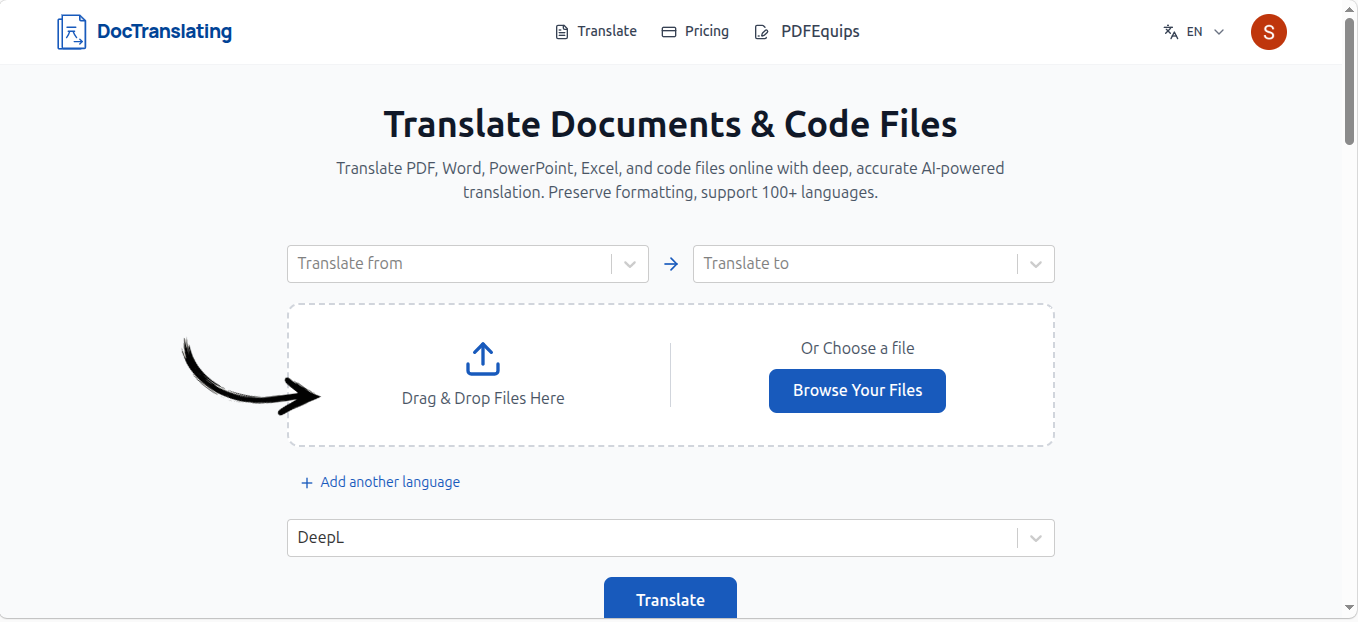
Drag your file onto the upload area, or click to browse. DocTranslating detects the file type automatically and only shows the translation engines that support it.
- 2
Choose your source and target languages
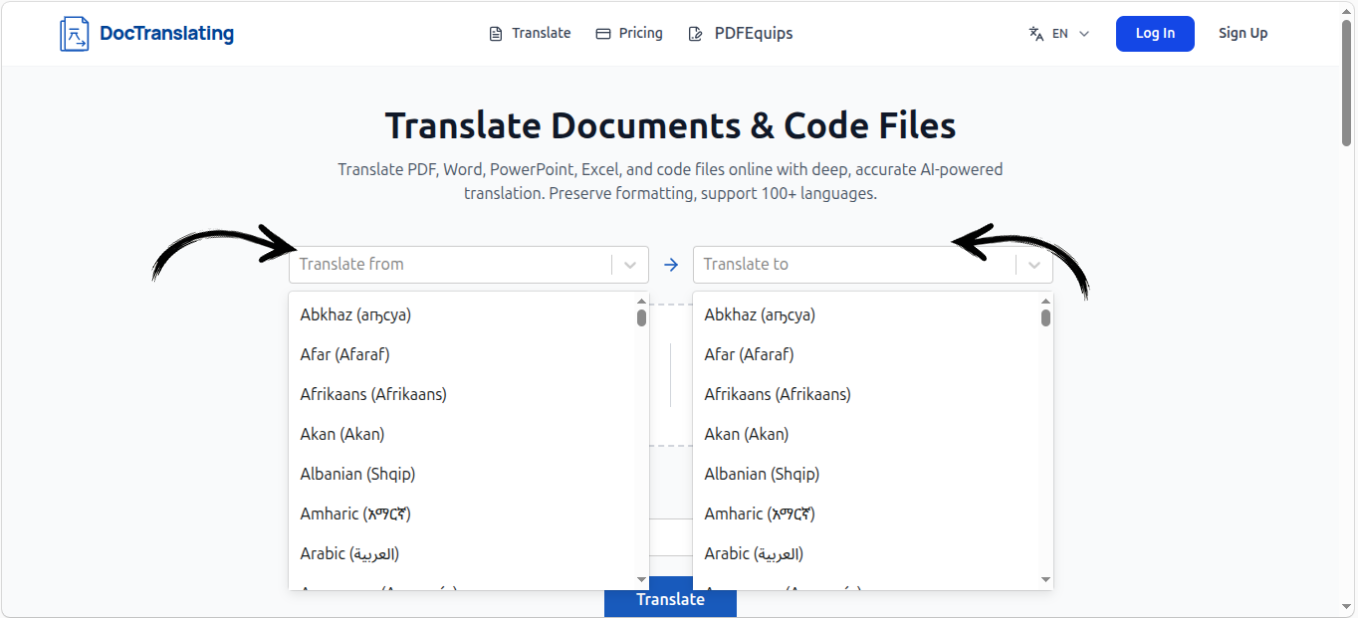
Set the language your document is written in (or leave it on auto-detect) and the language you want it translated into. Start typing to filter the list of 100+ languages.
- 3
Pick a translation engine
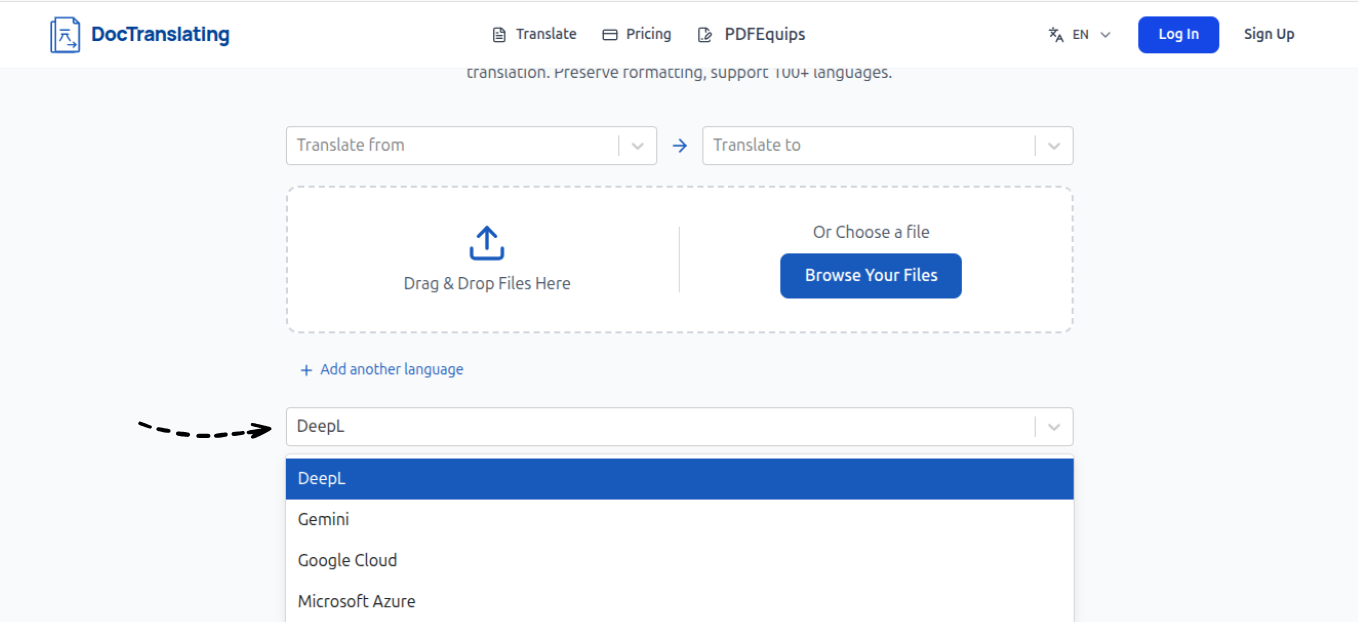
Choose between DeepL, Microsoft Azure, Google Cloud and Gemini. Each has different strengths, file-type support and limits — the next section explains exactly when to use which.
- 4
Start the translation
Click Translate. DocTranslating extracts the text, translates it, and reflows it back into a copy of your original document while preserving the layout. Larger files take longer because each page is processed individually.
- 5
Download your translated file
When it finishes, download the translated document in the same format you uploaded. Open it to confirm the layout matches the original before you use it.
Choosing the right translation engine
All four engines preserve formatting, but they differ in quality, file-type support, file-size limits and how they handle complex layouts. Here is the quick reference, followed by the details and the workaround for each engine's main limitation.
| Engine | Best for | Max file size | Page limit |
|---|---|---|---|
| DeepL | Natural quality, Office files, images | 30 MB | Unlimited |
| Microsoft Azure | Office formatting fidelity | 20 MB | Unlimited |
| Google Cloud | Widest language coverage | 10 MB | Unlimited |
| Gemini | Layout-heavy PDFs, code, consistency control | 100 MB | 25 pages |
DeepL
DeepL produces the most natural output for the European languages it supports, and it accepts the widest range of everyday files — PDF, all Office formats, plain text, images and subtitles. Its main constraints are a 30 MB file-size limit and the way it segments text (covered in the consistency section below).
Microsoft Azure
Azure is the most reliable engine for Office documents — text boxes, inline formatting and footnotes survive best here. The catch is that it only accepts the modern Office formats (.docx, .pptx, .xlsx) plus text and a few markup formats; it does not accept PDFs or legacy .doc / .ppt / .xls files.
Google Cloud
Google Cloud covers the widest list of languages and handles both PDFs and Office files. Two things to know: it has the smallest file-size limit at 10 MB, and it adds a small watermark to translated PDFs.
Gemini
Gemini is the LLM-based engine. It is the best choice for layout-heavy PDFs, source code and localization files, and it uniquely lets you pass custom instructions to keep terminology and tone consistent (see below). It accepts files up to 100 MB but caps each file at 25 pages, and it only handles PDFs, code and translation/subtitle formats — not .docx, .pptx or .xlsx.
How well is formatting actually preserved?
It depends on the file type and engine, so it is worth being precise about what survives and what can drift.
- Word and PowerPoint expose their structure natively, so text boxes, inline formatting (bold, italic, hyperlinks) and footnotes are preserved reliably. Azure is the strongest here, with DeepL and Google Cloud close behind.
- PDFs are messier — and that is true across the whole industry, not just one tool. A PDF doesn't carry semantic structure, so footnotes and floating text boxes can shift depending on how the original was authored. Simple PDFs come out very clean; complex, design-heavy layouts are where drift shows up.
Translating scanned PDFs and images (OCR)
Scanned PDFs have no real text layer — they are pictures of text. DocTranslating runs an OCR step to extract the text before translating it. The DeepL engine can also translate image files (.png, .jpg) directly. The catch is that translation can only ever be as good as the OCR that feeds it: bad OCR plus translation compounds the errors.
Keeping terminology, tone and gender consistent
This is the single biggest pain point in document translation, so it's worth understanding clearly. DeepL translates with sentence-level segmentation and a small context window, which means it can't reliably carry information across sentences. Two practical consequences: a term like jurisdiction can be rendered several different ways through one document, and pronoun gender gets lost in languages that don't mark it grammatically — a known problem when translating into Turkish, Finnish, Hungarian and similar languages. Glossaries don't fully fix this because they fail on word forms.
The Gemini engine handles this differently. Because it's LLM-based with a much larger context window, it can hold consistency, and it gives you an optional instructions field where you pass guidance along with the translation — for example: the subject of the document is male, translate ‘jurisdiction’ the same way throughout, use a formal tone, or keep dates in DD/MM/YYYY. Those instructions are applied to every page, so you get far better consistency than glossary-based approaches.
Right-to-left source documents (Arabic, Hebrew, Persian)
Translating into a right-to-left language works correctly — the result is mirrored and aligned properly. Translating from an RTL language is where there's a current limitation, and it's specific to PDFs: the PDF text-extraction layer returns content in visual draw order rather than logical reading order, so the words can come out jumbled before translation even starts. The layout looks right, but the text inside is scrambled. RTL Word and PowerPoint files are fine because their structure is native; it's RTL PDF sources that are affected. This is a real limitation that isn't solved yet.
Subtitle, localization and translation files
Beyond office documents, DocTranslating handles the formats translators and developers work with: subtitle files (.srt on DeepL and Gemini, .vtt on Gemini), gettext localization files (.po, .pot on Gemini), and XLIFF (.xliff, .xlf) on DeepL, Azure and Gemini, plus tabular .csv / .tsv. Highly specialized desktop-publishing formats such as FrameMaker .mif aren't supported. If you have a localization file in a standard interchange format, XLIFF is your safest bet.
Tips for the best results
- Translate the editable source file (Word, PowerPoint) when you have it — it reflows more cleanly than a flattened PDF.
- For scanned PDFs, verify the OCR text is correct before translating, and make sure image-only scans actually have a usable text layer.
- On layout-heavy PDFs, reach for the Gemini engine and use the instructions field to lock down terminology and tone.
- Dense layouts may need minor spacing tweaks if the target language runs much longer than the source.
- Always open the finished file and check it against the original before using it — especially for tables, footnotes and right-to-left text.