How-to
How to convert a PDF to Word without losing the formatting
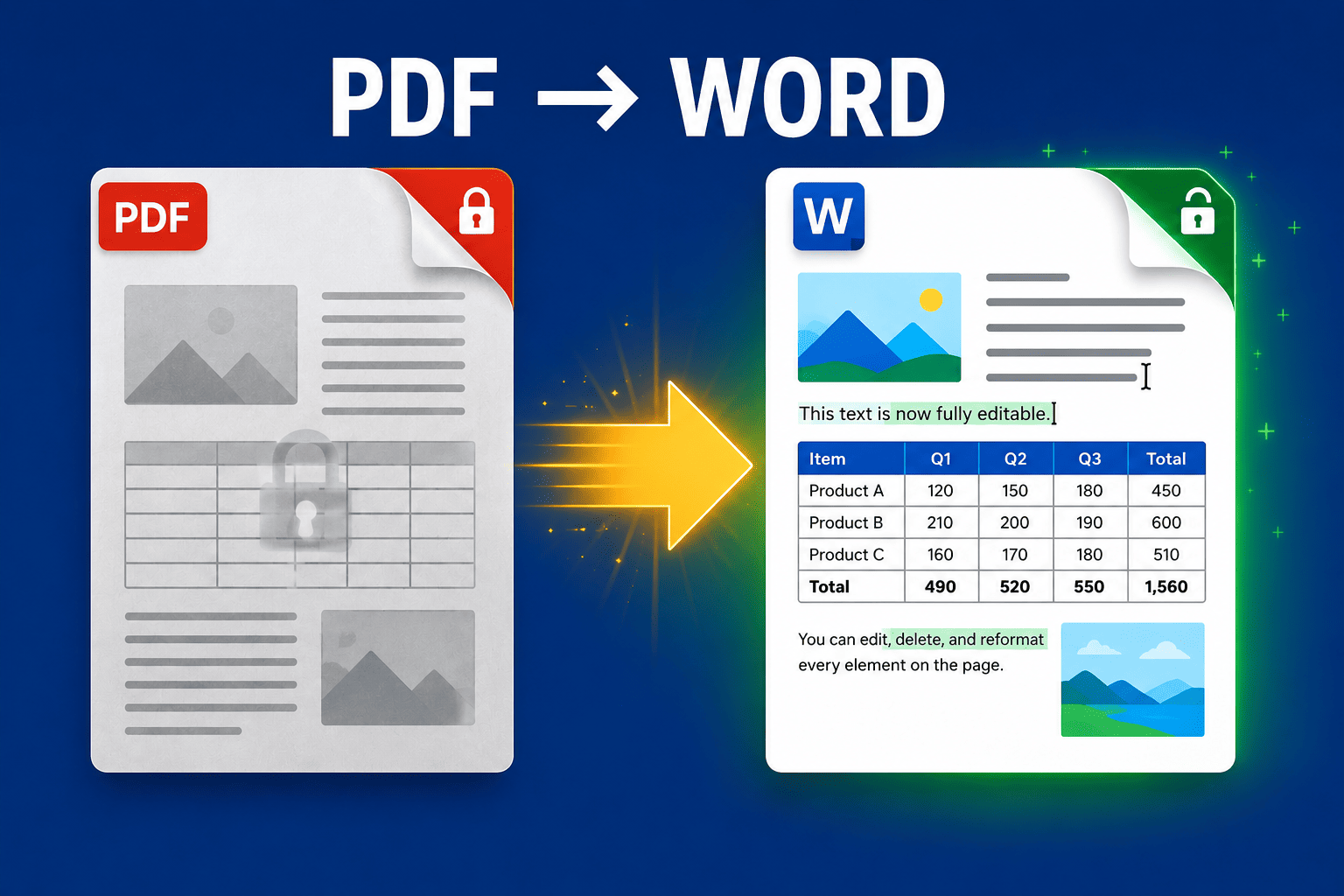
You need to edit a PDF, so you convert it to Word — and the tables shatter, the fonts turn strange and every line becomes its own paragraph. Here's why that happens, how to get a clean editable Word file the first time, and what to do about scanned or password-protected PDFs.
Updated August 29, 2026 · 6 min read

The reason you're converting a PDF to Word is almost always the same: you need to change something — fix a clause in a contract, update a figure in a report, reuse the text somewhere else. The trap is that a careless conversion gives you a Word file that's technically editable but practically unusable: tables split into fragments, paragraphs chopped into single lines, fonts swapped for something that isn't quite right. This guide is about avoiding that — getting a Word document you can actually work in, not one you have to rebuild.
Why PDF-to-Word conversions break formatting
It helps to know what you're fighting. A PDF isn't a document in the way Word is — it's closer to a set of drawing instructions that say "put this glyph at this position on the page." It has no reliable idea of what a paragraph, a heading or a table is; those are things a converter has to infer from the position of marks on the page. When the inference is good, you get a clean Word file. When it's not, you get the classic mess. That's why the same tool can convert a simple letter perfectly and mangle a multi-column report — the second one is simply harder to guess.
- Tables break most often, because a PDF has no real table structure — it's just lines and text that look like a table, so a converter has to reconstruct the grid.
- Every line becomes its own paragraph when the converter reads each visual line as a hard return instead of letting text flow.
- Fonts get substituted when the PDF's fonts aren't embedded, so Word swaps in the closest match and spacing shifts.
- Images drift out of position because their anchor to the surrounding text was never stored in the PDF.
The reliable way to get an editable Word file
The single biggest factor in a clean result is the quality of the converter's layout analysis. A tool that carefully reconstructs tables, keeps text flowing into real paragraphs and preserves embedded fonts will save you the hours of cleanup that a basic one costs you. PDFEquips' PDF to Word converter is built around exactly this, and it's worth understanding its two modes because picking the right one is most of the battle.
- 1
Open the converter
Go to the PDF to Word tool in your browser. There's nothing to install.
- 2
Upload your PDF
Drag the file onto the page or click to browse. You can add several PDFs if you need to convert more than one.
- 3
Choose Basic or Premium
For anything with tables, columns or images, choose Premium so the layout is properly reconstructed. Use Basic only for simple text pages.
- 4
Convert and download
Run the conversion and download your .docx file. Optionally set a custom output name before you download.
- 5
Check the result in Word
Open it and glance over the tables, headings and images against the original. A good conversion needs only minor touch-ups, if any.
Converting a scanned PDF (this is the one people miss)
Here's the trap that catches most people: if your PDF is a scan — a photo of a page — there is no text in it at all, only an image. A normal conversion will hand you a Word file with a picture of your document pasted in, and nothing you can edit. The fix is OCR (optical character recognition), which reads the text out of the image first. A quick test: open the PDF and try to select a line of text with your cursor. If you can't, it's a scan and needs OCR before conversion.
What about password-protected PDFs?
A converter can't read a PDF that's locked, so a password-protected file will fail or come back empty. If it's your document and you know the password, remove the protection first with the unlock PDF tool, then convert the unlocked copy. If you don't have the right to unlock it, you shouldn't be converting it anyway.
Already have a messy Word file? Fix it fast
If you've already converted and the output is rough, a few targeted fixes beat starting over — as long as the text itself came through. In Word:
- Every line is its own paragraph: use Find & Replace to clean up stray paragraph marks, or reconvert with a better tool rather than fixing hundreds by hand.
- Broken tables: select the table and use Word's Table Tools to fix column widths and alignment; for a badly shattered one, it's often faster to insert a fresh table and repaste the data.
- Wrong fonts: select all and set a standard font like Calibri or Times New Roman to get back to something consistent.
- Text came through garbled or as an image: that's the scanned-PDF problem above — go back and run OCR first, because no amount of Word editing will fix it.
Frequently asked questions
How do I convert a PDF to Word without losing formatting?
Use a converter with strong layout analysis and pick its higher-quality mode for anything with tables, columns or images. On PDFEquips, that's the Premium mode of the PDF to Word tool — it reconstructs tables, keeps text flowing into real paragraphs and preserves embedded fonts, so the Word file matches the original. Basic mode is fine for simple text-only pages.
Why does my PDF turn into a mess when I convert it to Word?
Because a PDF stores the position of marks on a page, not a document's structure. The converter has to infer where paragraphs, headings and tables are. Simple layouts convert cleanly; complex ones — multi-column pages, dense tables, non-embedded fonts — are harder to infer, which is where broken tables, hard line breaks and font substitution come from.
Can I convert a scanned PDF to an editable Word document?
Yes, but you must run OCR first. A scanned PDF is an image with no text in it, so a plain conversion produces an uneditable picture. Run the scan through an OCR tool to add a real text layer, then convert that to Word. A quick check: if you can't select the text in the PDF with your cursor, it's a scan and needs OCR.
How do I convert a password-protected PDF to Word?
Remove the password first, then convert the unlocked copy — a converter can't read a locked file. Use an unlock PDF tool if it's your document and you have the password.
Is it safe to convert PDFs online?
Reputable tools process your file over an encrypted connection and don't keep it longer than needed. For genuinely sensitive documents you can also remove protection and convert on trusted tools only, and delete the output copies once you're done.
My tables broke during conversion — how do I fix them?
For minor breakage, select the table and use Word's Table Tools to correct column widths and alignment. For a badly shattered table it's usually faster to insert a new table and repaste the data. Better still, reconvert with a higher-quality mode so the table survives in the first place.