How-to
How to translate an Excel spreadsheet
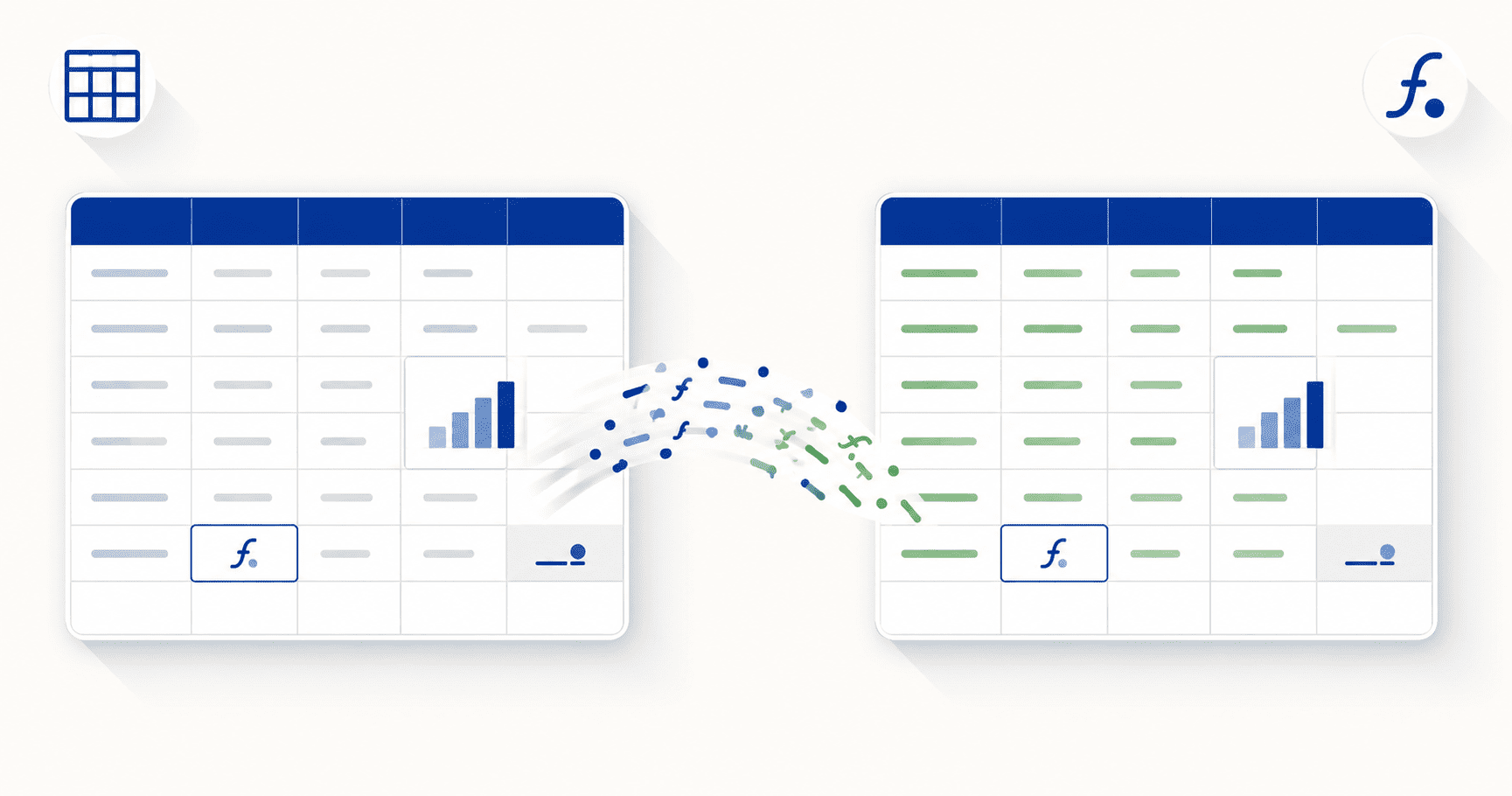
DocTranslating translates an entire Excel workbook (.xlsx, and legacy .xls) into 100+ languages in one operation — every sheet, every cell — while keeping formulas, number formats and layout intact. Text in cells and headers is translated; formulas keep working and aren't broken. Microsoft Azure gives strong formatting fidelity, DeepL produces natural output for European languages, and Google Cloud has the widest language coverage. Gemini doesn't accept Excel files — convert to another format first or use one of the other three engines.
Updated July 3, 2026 · 9 min read
Translating a spreadsheet by hand is slow and risky: you translate one cell at a time, or paste columns into Google Translate and copy the results back — losing formatting, and sometimes breaking formulas in the process. This guide covers the faster, safer way: translating the whole .xlsx (or legacy .xls) workbook at once, across every sheet, so the text is translated while the formulas and structure keep working.
What gets translated — and what stays untouched
The whole point of translating a spreadsheet (rather than a plain document) is that not everything should be translated. Numbers, dates and formulas need to keep working exactly as they are; only the human-readable text should change language. Here's how that breaks down:
| Element | What happens |
|---|---|
| Text in cells | Translated into the target language |
| Column and row headers | Translated |
| Chart titles and axis labels | Translated |
| Formulas | Preserved and kept working — not translated or broken |
| Numbers and dates | Values kept intact; only surrounding text changes |
| Cell formatting and layout | Preserved — colours, borders, merged cells, column widths |
| Multiple sheets / tabs | All sheets in the workbook are processed |
Why Excel files translate cleanly
An .xlsx file is structured internally as XML — every cell, sheet, header and chart label is a labelled element. That structure lets a document translator identify each piece of text, translate only the parts that should be translated, and rebuild the workbook with its formulas, number formats and layout intact. It's the same reason Word and PowerPoint files translate well, and the opposite of a PDF, where everything has been flattened into fixed positions.
Step-by-step: translate an Excel spreadsheet
- 1
Upload your .xlsx or .xls file
Drag your workbook onto the upload area or click to browse. DocTranslating detects the format and shows only the engines that accept it. Modern .xlsx works with three engines; legacy .xls is supported by DeepL and Google Cloud.
- 2
Choose your source and target languages
Set the language the spreadsheet is written in (or leave it on auto-detect) and the language you want it translated into. Auto-detect works well on spreadsheets because the text is clean.
- 3
Pick a translation engine
Choose Microsoft Azure for strong formatting fidelity, DeepL for natural output on European languages, or Google Cloud for the widest language coverage. Gemini doesn't accept Excel files. The comparison below covers the trade-offs.
- 4
Translate the whole workbook at once
Click Translate. Every sheet and cell is processed in a single operation — no need to go tab by tab or column by column. Download the translated .xlsx and open it to confirm the numbers, formulas and layout are intact.
Which translation engine is best for Excel?
All three engines that accept Excel preserve formulas and layout, but they differ in formatting fidelity, language coverage, file-size limits, and whether they accept the legacy .xls format.
| Engine | Best for | Formats | Max file size |
|---|---|---|---|
| Microsoft Azure | Strong formatting fidelity | .xlsx only | 20 MB |
| DeepL | Most natural output for European languages | .xlsx, .xls | 30 MB |
| Google Cloud | Widest language coverage | .xlsx, .xls | 10 MB |
| Gemini | Not available for Excel — PDF and code files only | — | — |
Translating legacy .xls files
Spreadsheets saved before 2007 use the older .xls format. DeepL and Google Cloud accept it directly; Microsoft Azure requires the modern .xlsx. To use Azure:
Tips for accurate spreadsheet translation
- Check numbers and dates after translating. Values are preserved, but different languages use different decimal separators and date orders — verify that a comma decimal or DD/MM date reads correctly for your audience.
- Review translated headers in context. Short column headers ("Balance", "Net", "Rate") can be ambiguous out of context; a quick pass catches any header that was translated too literally.
- Keep an untranslated copy. Since formulas and values carry over, keep the original workbook as your source of truth and treat the translated file as a presentation copy.
- Watch text expansion in narrow columns. Translated text can be longer than the original; you may need to widen a column or two so nothing is cut off visually.
File size and large workbooks
The limits are 30 MB on DeepL, 20 MB on Azure and 10 MB on Google Cloud. Most spreadsheets are well under these limits since they're mostly text and numbers — you'd usually only approach them with embedded images or very large datasets. If a workbook is too large, remove or compress embedded images, or split it into fewer sheets per file, translate each, and recombine.
Right-to-left spreadsheets work cleanly
Translating a spreadsheet written in Arabic, Hebrew or Persian — or into one of those languages — works correctly, because .xlsx stores text in logical reading order and the sheet mirrors properly. This is the opposite of scanned PDFs, where translating from a right-to-left source is still a limitation. If you have both an editable .xlsx and a PDF export of the same data, translate the .xlsx.
Frequently asked questions
How do I translate a whole Excel spreadsheet at once?
Upload the .xlsx or .xls file to DocTranslating, choose your source and target languages, pick Microsoft Azure, DeepL or Google Cloud, and click Translate. Every sheet and cell in the workbook is translated in a single operation and downloaded as a translated Excel file — you don't need to go cell by cell or sheet by sheet.
Will translating my Excel file break the formulas?
No. Formulas are preserved and keep working — they aren't translated or altered. Only the human-readable text (cell text, headers, chart labels) is translated into the target language, while formulas, numbers and dates keep their values and continue to calculate as before.
Does it translate all the sheets in a workbook, or just the first one?
All sheets in the workbook are processed in one operation. You don't need to translate each tab separately or split the file — the entire multi-sheet workbook is translated at once.
Can I translate an Excel file without losing the formatting?
Yes. Because .xlsx stores each cell, header and chart label as a structured element, a document translator can translate the text and rebuild the workbook with its colours, borders, merged cells, column widths, number formats and layout intact.
How do I translate an Excel spreadsheet to English?
Upload the workbook, set the target language to English (leave the source on auto-detect if you're unsure of the original language), choose an engine, and translate. All three Excel-compatible engines handle translation into English well; Google Cloud is a good pick if the source language is uncommon.
Can I still translate old .xls files?
Yes — DeepL and Google Cloud both accept the legacy .xls format directly. Microsoft Azure requires the modern .xlsx, so if you want to use Azure, save the file as .xlsx from Excel first (File → Save As), or convert it with the XLS-to-XLSX converter on PDFEquips.
What's the difference between translating Excel text and translating Excel formulas?
Translating Excel text means changing the human-readable content (cell text, headers, labels) into another language while keeping formulas working — that's what DocTranslating does. Translating Excel formula function names between language versions of Excel (like =SUM() to =SOMME()) is a different task handled by Excel's built-in Functions Translator, not by document translation.
Can I translate an Excel spreadsheet into Arabic, Hebrew or Persian?
Yes, and cleanly. Unlike scanned PDFs, .xlsx files store text in logical reading order, so translation into right-to-left languages produces a correctly-mirrored, properly-flowing spreadsheet.
What's the maximum Excel file size I can translate?
30 MB on DeepL, 20 MB on Microsoft Azure and 10 MB on Google Cloud. Most spreadsheets are far below these limits since they're mainly text and numbers; you'd only approach them with embedded images or very large datasets, in which case you can remove images or split the workbook into smaller files.